Technical SEO Checklist: Fix These First or Stay Invisible

Technical SEO Checklist: Fix These First or Stay Invisible
Before you chase keywords or backlinks, your site needs a strong technical backbone. Google can’t rank what it can’t properly access or understand.
That’s why technical SEO is Pillar #1 – it makes sure your site is easy for Google to find, explore, and understand, so you’re not missing out on traffic before you even begin.
Even the best content won’t rank if this part is broken.
But don’t worry: this guide explains everything in plain English so even non-technical marketers can follow along (with a little help from their team, if needed).
Let’s quickly revisit the goal of this pillar.
Goal: Make sure your website can be found, loaded, and understood by Google.GSC is a free tool from Google that helps you monitor your website’s visibility in search. The first step is to verify your domain inside GSC:
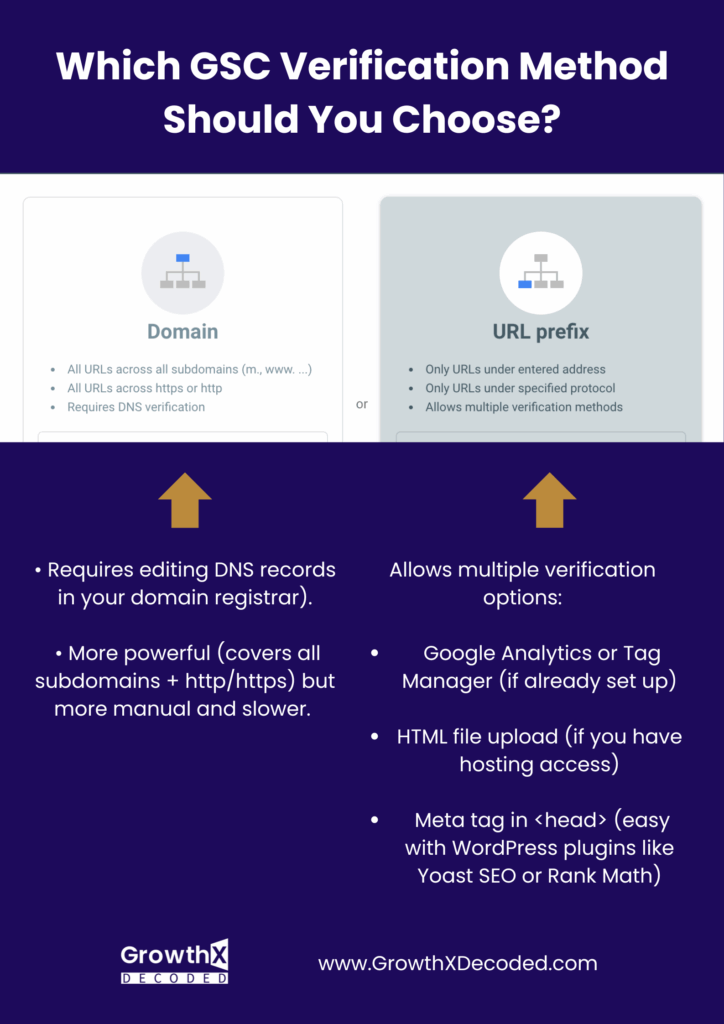
This proves you own the site and allows you to see performance data, indexing status, and fix issues.
Once your site is verified (usually instantly), go to Google Search Console > Indexing > Sitemaps and submit your sitemap (typically found at https://yourdomain.com/sitemap_index.xml).
Submitting a sitemap is like handing Google a roadmap to all your pages. It helps Google discover your content more efficiently and ensures your important pages are eligible for indexing.
Before adding anything to Google Search Console, first check whether your website actually has a sitemap. The easiest way is to type one of the following URLs directly into your browser:
• yourdomain.com/sitemap.xml

• yourdomain.com/sitemap_index.xml
If a page opens with a list of URLs or sitemap files, you’re good, your site already has a sitemap. If not, don’t worry. Creating one is easy.
If your site is on WordPress, just install the Yoast SEO plugin, it will auto-generates a sitemap at: yourdomain.com/sitemap_index.xml (Go to Yoast > Settings > General > Site Features and ensure “XML sitemaps” is enabled).
Not on WordPress? Use a free tool like XML Sitemap Generator to create one, then download the .xml file and upload it to the root of your site via your hosting dashboard or send it to your dev. Once it’s live, you can add it to Google Search Console to help Google crawl your site properly (Google Search Console > Indexing > Sitemaps).
Your website must be secure (padlock icon in browser).
Just share this with your website admin:
“Please check if the SSL certificate is properly installed. The site must use https:// — http:// is outdated and not secure.”
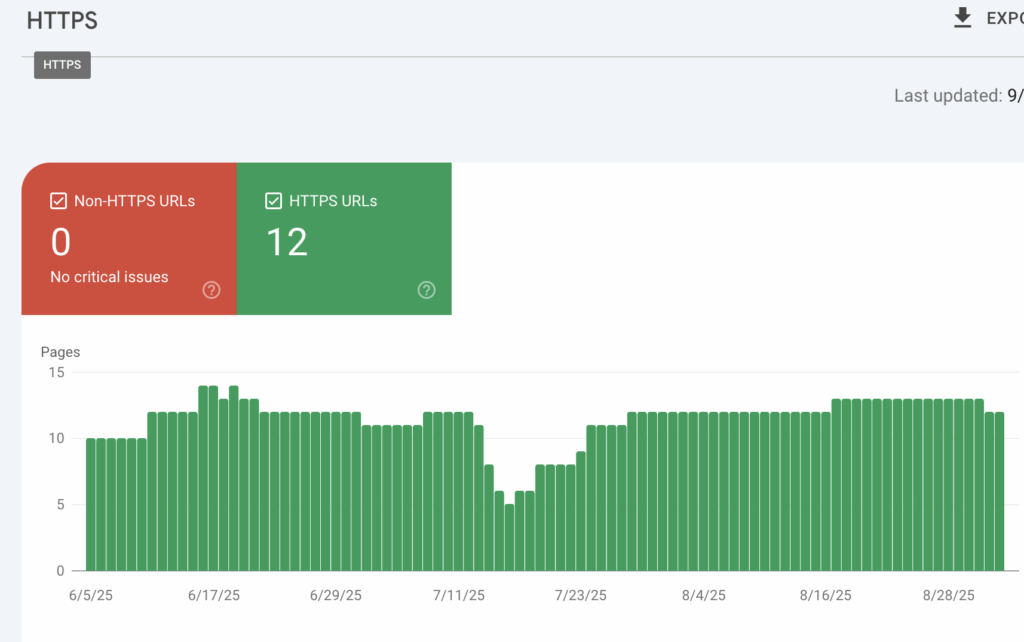
You can check if your website meets Google’s security standards by going to Google Search Console > Page Experience > HTTPS.
All your pages should be marked in green, like this:
After submitting the sitemap, wait 7–10 days and check if your pages are being indexed.
If you have 100 blog posts but only 30 are indexed, something’s wrong: it could be a technical issue or a signal that Google isn’t finding your content valuable or accessible.
Inside Google Search Console, go to Indexing > Pages and you’ll see a chart like this.
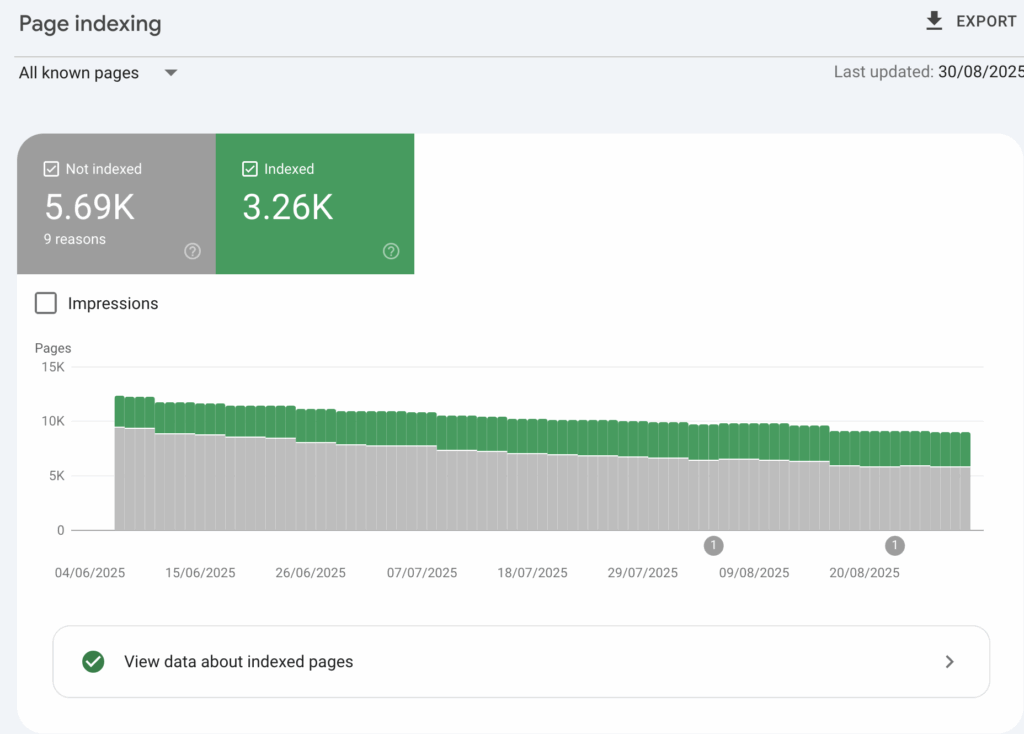
Don’t panic if not all your pages are indexed: that’s totally normal.
Some pages aren’t meant to be indexed (like thank-you or admin pages), and others may have minor fixable issues.
Still, as a rule of thumb, aim to have 60–80% of your important pages indexed.
If you’re well below that, it’s a red flag to check for problems in your technical setup, content quality, or internal linking.
Google tells you exactly why a page wasn’t indexed. Let’s go through the most common reasons and how to handle each one.
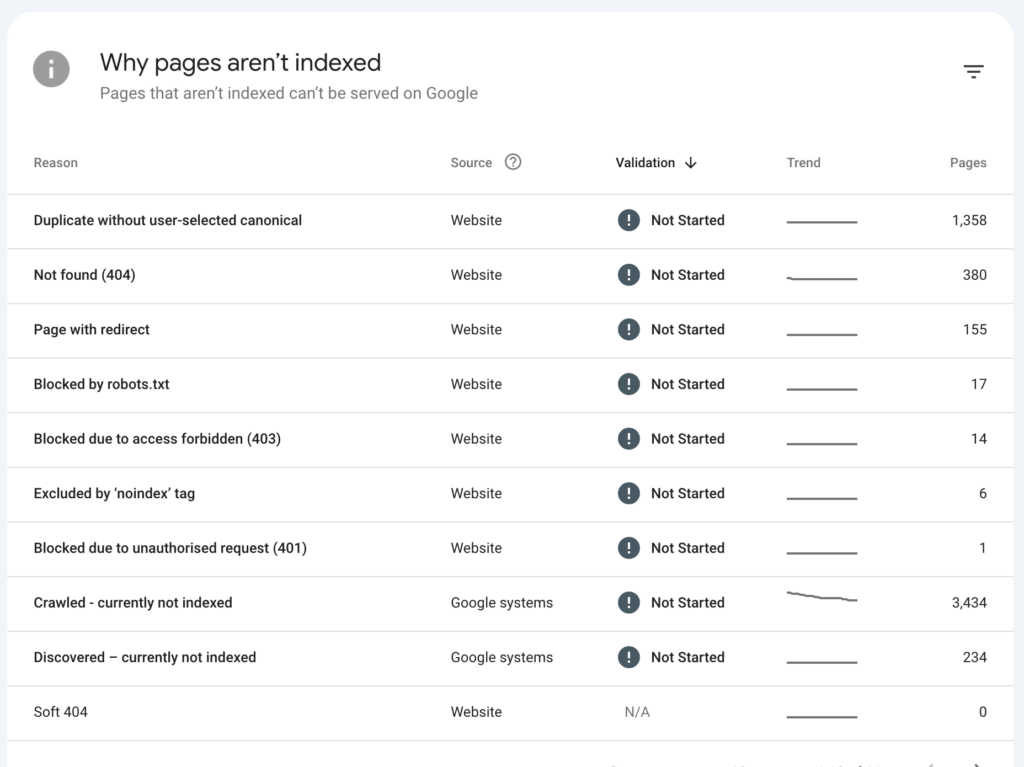
1. Duplicate without user-selected canonical

What it means: Google found similar pages and picked a different one to index.

Fix:
• Add canonical tags to tell Google your preferred version.
• Consolidate duplicate content if possible.

(See below for simple instructions on how to make these changes or how to ask your website admin in a friendly, respectful way that won’t step on any toes :)

⸻

2. Not found (404)

What it means: These pages don’t exist (broken links).

Fix:
• Redirect them to a relevant working page using 301 redirects.
• Or delete them from internal linking if no longer needed.

⸻

3. Page with redirect

What it means: These URLs redirect elsewhere, so they aren’t indexed.

Fix:
• Usually OK.
• If you want the final destination indexed, make sure that final page is crawlable and useful.

⸻

4. Blocked by robots.txt

What it means: Your robots.txt file is stopping Google from crawling these pages.

Fix:
• Remove the block only if you want these pages indexed.

⸻

5. Blocked due to access forbidden (403)

What it means: Google tried to crawl the page but got a “forbidden” error.

Fix:
• Check server settings or firewalls.
• Make sure these pages are publicly accessible.

⸻

6. Excluded by ‘noindex’ tag

What it means: These pages tell Google not to index them.

Fix:
• Remove the noindex tag if you want them in search results.

⸻

7. Blocked due to unauthorized request (401)

What it means: The page requires a login. Google can’t access it.

Fix:
• Only an issue if the page should be public. Otherwise, ignore.

⸻

8. Crawled – currently not indexed

What it means: Google crawled the page but didn’t find it worth indexing (yet).

Fix:
• Improve content quality and internal linking to these pages.
• Avoid thin or duplicate content.

⸻

9. Discovered – currently not indexed

What it means: Google knows the URL but hasn’t crawled it yet.

Fix:
• Boost internal links to these pages.
• Submit them manually in GSC for faster indexing.

⸻

10. Soft 404

What it means: Pages that look like they’re broken (empty or thin content) but don’t return a real 404 error.

Fix:
• Improve the page’s content or add proper 404 status if it shouldn’t exist.

⸻
Don’t worry about fixing every single link.
Also, the non-indexed pages listed under the following reasons:
3. Page with redirect
8. Crawled – currently not indexed
9. Discovered – currently not indexe
…don’t need to be addressed individually. These often resolve on their own or are caused by broader content or site structure issues.
Instead, focus on the most important pages, and include those in your message to the developer unless you’re comfortable making the changes yourself.
Subject: GSC Indexing Issues: Suggested Fixes

Hi [Dev Team / Name],

I’ve reviewed the indexing report in GSC and noticed several non-indexed page categories. Below is a breakdown of what each issue means and the suggested approach for addressing them.

Let me know which of these you’re already on top of: I know most of this is second nature to you, just trying to centralise everything.


Duplicate without user-selected canonical

What it means: Google found duplicate or very similar pages and didn’t know which version to index.

What to do: Add a canonical tag to the preferred version of each duplicate page below:

(List all affected URLs)

Here’s Google’s recommendation (Place this inside the <head> section):
<link rel="canonical" href="https://www.yourdomain.com/preferred-version/" />


Not Found (404)

What it means:
These URLs return a 404 error – meaning the page doesn’t exist.

(List affected URLs or redirect map if available)

What to do:
• If the page is permanently gone, remove internal links pointing to it.
• If the content has moved, add a 301 redirect to the new page.

301 Redirect example (Apache/.htaccess):
Redirect 301 /old-page https://www.yourdomain.com/new-page


Blocked by robots.txt

What it means: Googlebot is blocked from accessing the page due to rules in your robots.txt file.

What to do:
Check your robots.txt at:
https://www.yourdomain.com/robots.txt

If you want some of these listed pages indexed, remove or adjust the disallow rule.

Example:
# This blocks everything in the /admin/ folder:
Disallow: /admin/

(List blocked URLs or rules to revise)


Excluded by ‘noindex’ tag

What it means:
These pages include a noindex directive, which tells Google not to index them.

(List affected URLs)

What to do:
Remove the noindex tag if the page should appear in search results.
Check for this line in the HTML <head> section:

<meta name="robots" content="noindex">

Delete or replace it with:

<meta name="robots" content="index, follow">
As for the two categories below, you generally don’t need to take any action — unless you find non-indexed pages there that are important and should appear in search.
Blocked due to Access Forbidden (403)

What it means:
The server is rejecting Googlebot’s access to these pages.

(List affected URLs)

What to do:
• Adjust server permissions or firewall to allow Googlebot.
• Consider whitelisting Googlebot’s user agent if relevant.
(Googlebot user agent: Googlebot)


Blocked due to Unauthorized Request (401)

What it means:
Googlebot is blocked by login/authentication and can’t access the page.

What to do:
• If the content is public, remove login requirements.
• Otherwise, no changes needed.
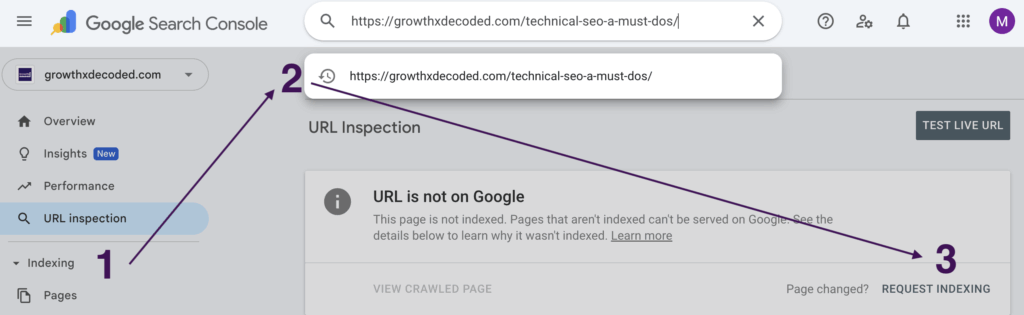
📌 Pro tip: After you or your developer make the necessary changes, speed up re-indexing by manually requesting it. Google actually likes that. Just follow these steps:
Google prefers fast, smooth websites. Core Web Vitals measure how quickly your site loads, becomes interactive, and stays visually stable during load.
You can check which pages need speed improvements by going to Google Search Console > Experience > Core Web Vitals reports.
There, you’ll see a list of affected pages and performance issues.
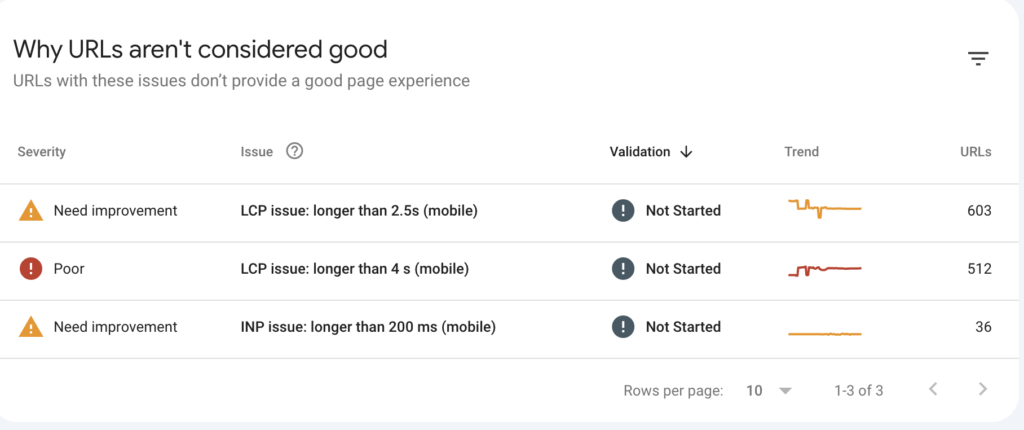
But don’t get discouraged! Not every page needs to be lightning-fast or perfectly optimized for mobile. Focus your efforts where it matters most — check if your homepage, blog posts, landing pages, or other high-traffic pages are listed under LCP issues longer than 4s or 2.5s, and fix those first. These are the pages that impact your SEO and user experience the most.
Create a list of specific page URLs that need speed improvements (based on GSC Insights), then share it with your developers using a note like this:
Hi [Name],

Could you please take a look at improving the speed of the following pages?

[Insert list of URLs]

It’s important for our SEO: these pages were flagged in Google Search Console’s Core Web Vitals report. You can also check each page in PageSpeed Insights for specific suggestions.

I’m not a tech expert, but from what I’ve read, some common improvements include:
	•	Compressing large images
	•	Removing unused CSS or JavaScript
        •       Limiting use of heavy frontend libraries or animations
        •       Avoiding for long tasks that block the main thread
	•	Using faster or more optimized hosting if needed

Let me know if you need anything from my side. Thanks so much!Most users (and Google’s crawler) access your site from mobile devices.
That means your site should look clean, function smoothly, and be fully usable on a phone.
Concretely, this means:
• Text should be easy to read without zooming,
• Buttons should be large enough to tap,
• The layout should adapt correctly to smaller screens without breaking.
As of September 2025, Google has retired the separate Mobile Usability report. That’s because Core Web Vitals now cover the most important mobile-related experience issues.
Go to Google Search Console → Experience → Core Web Vitals (Mobile)
Check if any important pages, like your homepage, blog, product pages, or other high-traffic pages are listed under:
• INP (Interaction to Next Paint) over 200ms – signals slow responsiveness
• LCP (Largest Contentful Paint) longer than 2.5s or 4s – signals slow content loading
📌 Collect the URLs that are affected and need mobile optimization. Then send them to your developer using the kind message template below. You don’t need perfect scores: just make sure key pages (homepage, blogs, landing pages) are marked “Good” for mobile in Core Web Vitals and Page Experience.
Subject: Mobile Optimization – Key Pages to Review

Hi [Name],

Hope you’re well!

I noticed that a few of our most important pages are showing mobile performance issues in Google Search Console → Core Web Vitals. Specifically, some are flagged for slow interaction (INP > 200ms) or slow loading (LCP > 2.5s or 4s).

Since most users (and Googlebot) access the site on mobile, it’s really important these key pages are fully optimised for mobile devices (clean layout, readable text, tappable buttons, etc.). This impacts both user experience and how well we rank in search.

Here are the pages to review:

[Insert list of URLs]

Let me know if you need anything else from my side. Thanks so much!

Best,
[Your Name]
Now that you’ve nailed the technical foundation of your SEO, it’s time to move on to Pillar 2: Keyword & Search Intent Strategy.
This is where strategy meets psychology: understanding not just what people search, but why they search it. Let’s dive in.
 Loved the story? Share it to inspire others and spark new ideas!

 LinkedIn
 Twitter (X)
 Facebook
 Copy link